Friday, November 5, 2010

An Awesome Torrent Application for your ubuntu That Support web and have a nice webGUI

Deluge is a full-featured BitTorrent client for Linux, OS X, Unix and Windows. It uses libtorrent in it's backend and features multiple user-interfaces including: GTK+, web and console. It has been designed using the client server model with a daemon process that handles all the bittorrent activity. The Deluge daemon is able to run on headless machines with the user-interfaces being able to connect remotely from any platform.

Deluge features a rich plugin collection; in fact, most of Deluge's functionality is available in the form of plugins.

Deluge was created with the intention of being lightweight and unobtrusive. It is our belief that downloading shouldn't be the primary task on your computer and therefore shouldn't monopolize system resources.

here is some screenshoot on how it looks on ubuntu 10.4 and also show a webgui screenshoot


to download it inside your ubuntu just copy and paste the following 2 lines in your terminal

sudo add-apt-repository ppa:deluge-team/ppa

sudo apt-get update && sudo apt-get install deluge

Wednesday, November 3, 2010

ubuntu 10.10 First Look

Recently ubuntu 10.10 was released, and i didn't have the time to test it in that time,recently i did install it to my friend and i found that it is really fast and really clean in the design.now to the new things in ubuntu 10.01, first the ubuntu software center has been changed for better i think more applications and centralized management, this can be seen while users use it. also ubuntu 10.10 introduce kernel 35 which support more hardware. also the installer has been update now there is a new installer which can let you install ubuntu with the latest updates and it also enable users to install third party software such as codecs and plugins needed for multimedia play back.

the following pictures will summarize the what we were talking about


also here is a video show how is the new installer look like

Securing & Optimizing Linux: The Hacking Solution (v.3.0) (Free PDF Guide)


while i was browsing the net for the new Linux related news i found this e-book which is 800+ pages that talk about security tools that been used in Linux. this book have a clear and deep description on how to safely configure and used these tools in Linux environment and it is also free to download, so just click here to download

Saturday, March 27, 2010

Full Cricle Magazine issue 35 OUT

Today full circle magazine announce the availability of the new issue 35 of there ubuntu magazine here some headlines from the new issue:

[Magazine]
We've got a review of the coveted Motorola Droid (Milestone for those of you in Europe), an Android app review, as well as tips on running Google Sketchup in Wine for you. In addition to all that, we have:

* Command and Conquer.
* How-To : Program in Python – Part 9, Digitally Retouching a Photo in GIMP – Part 2, and Installing Google SketchUp using Wine.
* Review – Motorola Milestone/Droid.
* MOTU Interview – Pedro Fragoso.
* Top 5 – Android Applications.
* Ubuntu Women, Ubuntu Games, My Opinion, My Story, and all the usual goodness!

Get it here

Friday, March 5, 2010

Take a look on the comming relese ubuntu 10.4

yesterday ubuntu has revealed there new awesome theme for the next ubuntu OS here is some screen shot from my Virtualbox:


From Blogger Pictures

Download
For the impatient or those Karmic users wishing to see if the themes will work for them, here are the necessary .debs files to get you going.

Themes @ launchpad.net//light-themes_0.1.5.2_all.deb
Icons @ http://launchpadlibrarian.net/40195509/ubuntu-mono_0.0.6_all.deb

Monday, March 1, 2010

Songbird a very powerfull and cool music player very unique


Songbird is a free and open source software audio player and web browser founded by Rob Lord and developed by Pioneers of the Inevitable (with members who previously developed for both Winamp[2] and the Yahoo! Music Engine), with a stated mission "to incubate Songbird, the first Web player, to catalyze and champion a diverse, open Media Web.


Songbird utilizes the cross-platform frameworks, Mozilla's XULRunner and GStreamer media framework, and is thus capable of running on Microsoft Windows, Apple Mac OS X, Solaris and Linux.
This music player is so unique since it is based on the Mozilla project it has its potential such as plug-ins and powerful web browser built inside it.

Prerequisite on ubuntu machine:
* glibc 2.3.4 or later
* XOrg 1.0 or later
* gtk+2.10 or later
* fontconfig (also known as xft)
* libstdc++6
* 1.5 GHz Pentium 4 or comparable
* At least 512 MB of physical RAM
* At least 100 MB of available space on your hard drive
* 16 bit sound card (Recommended: 32-bit Sound Card)
* Speakers or headphones

you just need to download the application from there website. then extract the file and run double click on songbird file and thats it.

note: if it does not work try to enter this command in the terminal and then try to launch the program again:
sudo mv /usr/lib/python2.6/dist-packages/gst-0.10/ /usr/lib/python2.6/dist-packages/gst-0.10_bad
Enjoy

Saturday, February 27, 2010

Ubuntu Magazine issue 34 Check it Out


This month marks the 34th issue of Full Circle, along with the new and improved companion Full Circle Podcast! Now, along with your magazine, you've got an extra 40 minutes of auditory Full Circle goodness. Just click the podcast link on the site and take a listen.

In the magazine:
Command and Conquer.
How-To : Program in Python - Part 8, Digitally Retouching a Photo in GIMP, and The Perfect Server - Part 4.
My Story - a Linux User, and Powerpets.
Review - Acer UL30-A laptop.
MOTU Interview - Roderick Greening.
Top 5 - Reference Tools.
Ubuntu Women, Ubuntu Games, My Opinion, and all the usual goodness!

Download it here:
Grab the companion podcast:

Enjoy!

Thursday, February 18, 2010

KDE 4.4 Really Awesome, look at it


First of all what is KDE?

KDE is an international team co-operating on development and distribution of Free, Open Source Software for desktop and portable computing. Our community has developed a wide variety of applications for communication, work, education and entertainment. We have a strong focus on finding innovative solutions to old and new problems, creating a vibrant, open atmosphere for experimentation.

What makes KDE so exciting?
The best thing about KDE is our amazing community! We are open to new members, offering help and allowing them to experiment, learn and grow. Our products are used by millions of home and office workers, and are being deployed in schools around the world - Brazil alone has over 50 million school children using KDE-based software to browse, learn and communicate!

What does KDE produce?

For users on Linux and Unix, KDE offers a full suite of user workspace applications which allow interaction with these operating systems in a modern, graphical user interface. This includes Plasma Desktop, KDE's innovative desktop interface. Other workspace applications are included to aid with system configuration, running programs, or interacting with hardware devices. While the fully integrated KDE Workspaces are only available on Linux and Unix, some of these features are available on other platforms.

In addition to the workspace, KDE produces a number of key applications such as the Konqueror web browser, Dolphin file manager and Kontact, the comprehensive personal information management suite. However, our list of applications includes many others, including those for education, multimedia, office productivity, networking, games and much more. Most applications are available on all platforms supported by the KDE Development.

KDE also brings to the forefront many innovations for application developers. An entire infrastructure has been designed and implemented to help programmers create robust and comprehensive applications in the most efficient manner, eliminating the complexity and tediousness of creating highly functional applications.

It is our hope and continued ambition that the KDE team will bring open, reliable, stable and monopoly-free computing to the everyday user.


for more info and videos on the new KDE 4.4 click here

Tuesday, February 16, 2010

GNU/Linux Advanced Administration Free book

GNU/Linux Advanced Administration

* Authors: Remo Suppi Boldrito, Josep Jorba Esteve
* Coordinator: Josep Jorba Esteve
* Licenses: GNU Free Documentation License, Creative Commons Attribute ShareAlike License
* Information: 545 Pages; 18.8 Mb


This what they write in there website:
The GNU/Linux systems have reached an important level of maturity, allowing to integrate them in almost any kind of work environment, from a desktop PC to the sever facilities of a big company.

In the module called "The GNU/Linux operating system", the main contents are related with system administration. This book is the main documentation for the module.

We will learn how to install and configure several computer services, and how to optimise and synchronise the resources.

The activities that will take place in this module cover the studied topics in a practical approach, applying these concepts in real GNU/Linux systems.

You can help us distribute this book if you download it via BitTorrent:

Click here to go to there website

10 Great Open Source Software


#1: Inkscape ( Vector Graphics Editor )


Fig.01: Inkscape is used by artist/illustrator/designer as vector graphics editor

Inkscape is a vector graphics editor. It is similar to Illustrator, CorelDraw, and Xara X. This is perfect for object manipulation and styling objects. From the project home page:
Inkscape supports many advanced SVG features (markers, clones, alpha blending, etc.) and great care is taken in designing a streamlined interface. It is very easy to edit nodes, perform complex path operations, trace bitmaps and much more. We also aim to maintain a thriving user and developer community by using open, community-oriented development.
Download

#2: 7-Zip (Archiver)

Fig.02: 7-Zip is used as archiver

7-Zip is a file archiver and open source software. No need to use winzip or anything else. It does everything for you without paying a single penny:

1. Supports many formats:
* Packing / unpacking: 7z, ZIP, GZIP, BZIP2 and TAR
* Unpacking only: ARJ, CAB, CHM, CPIO, DEB, DMG, HFS, ISO, LZH, LZMA, MSI, NSIS,
RAR, RPM, UDF, WIM, XAR and Z.
2. Fast.
3. Free and open source.
4. High compression ratio.
5. Works best with Windows operating systems.
Download

#3: VLC ( Media Player ):

Fig.03: VLC is similar to QuickTime / Windows Media Player

Great media player which supports almost all formats (audio, video formats DVDs / VCDs, and various streaming protocols) and is stripped down to its most fundamental features (i.e. portable media player). A must have software for all anim and movie fans.
Download

#4: VirtualBox ( Virtualization )

Fig.04: VirtualBox is used for virtualization

Run Linux / MS-Windows or any other supported os directly without removing Windows, Linux, OpenSolaris or Macintosh (OS X) host operating systems. A professional class software that is freely available as Open Source Software under the terms of the GNU General Public License (GPL). I recommend this software to all users to try out Linux or learn Perl / Shell scripting using UNIX development environment. VirtualBox is similar to VMware workstation.
Download

#5: Miro ( Internet TV )

Fig.05: Miro is used for Internet TV and as video player

Miro is a free, open source, video player and podcast client. The official site described it as:
Torrents made easy, RSS made beautiful, with tons of gorgeous HD video.

I love Miro and I use it for Internet TV and video player which comes with a library of more than 6,000 Internet streams and podcasts.
Download


#6: TrueCrypt ( Disk Encryption )

Fig:06: TrueCrypt is used for disk encryption (image credit official website)

Free open-source disk encryption (real-time on-the-fly encryption) software for Windows, Mac OS X, and Linux (for Linux I prefer native disk encryption). From the wikipedia:
It can create a virtual encrypted disk within a file or a device-hosted encrypted volume on either an individual partition or an entire storage device. It supports Microsoft Windows, Mac OS X and Linux (using FUSE) and encrypted volumes can be made portable. The version for Windows Vista or XP can encrypt the boot partition or entire boot drive and has the ability to create and run a hidden encrypted operating system whose existence is deniable.
Download


#7: Calibre ( eBook Converter and Reader )

Fig.07: Calibre is used for: ebook converter / reader

calibre is a free and open source e-book library management application. It supports the following features:

1. It manages your e-book collection for you. It can sort the books in your library by: Title, Author, Date added, Date published, Size, Rating, Series, etc.
2. Tags - a flexible system for categorizing your collection however you like
3. Comments - a long form entry that you can use for book description, notes, reviews, etc.
4. Search local ebooks or over the Internet using title/author or ISBN.
5. E-book conversion
6. Syncing to e-book reader devices
7. Downloading news from the web and converting it into e-book form (e.g., NYT, TOI, ESPN etc).

Without this software Sony or Amazon ebook reader is virtually useless for non-ebook format pdf reading.
Download


#8: GnuCash ( Financial Management )

Fig.08: GnuCash is used for financial management / accounting

GnuCash is personal and small-business financial-accounting software, freely licensed under the GNU GPL and available for GNU/Linux, BSD, Solaris, Mac OS X and Microsoft Windows. Personally I like it because of its rich functionality and easy of use. GnuCash is similar to Microsoft Money and it is used by accountant, small business/home user etc. Features:
1. Double-entry bookkeeping
2. Scheduled Transactions
3. Mortgage and Loan Repayment Druid
4. Small Business Accounting Features
5. Transaction-Import Matching Support
6. Multi-Currency Transaction Handling
7. Stock/Mutual Fund Portfolios
8. Online Stock and Mutual Fund Quotes
Download


#9: GIMP ( Graphics / Simple Photo Editing )
From Blogger Pictures
Fig.09: GIMP quality photo retouching program

I'm not a professional artist/illustrator/designer/web designer (read as Photoshop expert), but gimp is used for simple photo editing of my personal work such as photo retouching, image composition, simple effects, image authoring, and much more.
Download

#10: Audacity ( Sound Editor / Recorder )

Fig.10: Audacity is used for audio / sound recorder & sound editor

Audacity is a free all in one audio editor and recorder like GoldWave software. You can use Audacity to record live audio, convert tapes and records into digital recordings or CDs, and edit sound files or just create personal ringtons for mobile phones.
Download

Friday, February 12, 2010

OpenOffice.org 3.2.0 new release

open office

OpenOffice.org 3 is the leading open-source office software suite for word processing, spreadsheets, presentations, graphics, databases and more. It is available in many languages and works on all common computers. It stores all your data in an international open standard format and can also read and write files from other common office software packages. It can be downloaded and used completely free of charge for any purpose. for more info about it click here

this release didn't introduce major changes , it focus more on fixing bugs on the earlier version of open office so hurry up guys and upgrade to the new version.
you can download it through this link

Instruction on how to install included in the installation package after you extract it
Enjoy

Thursday, February 11, 2010

How Linux See Your Hard Drive and Removable Devices


FSTAB and MTAB

These are some of those critical programs for your computer. Without these, your computer will not know where to find any of the partitions or drives on the computer. Goof this up and you can be dead in the water. Never make any changes without a good backup copy.

/etc/fstab


In this file there is a description of the various file systems. Commands like ¨fsck¨ and ¨mount¨ consult this file for the actions they take.
This looks like a complicated description of the files on your computer, but it is really simple if you break it down into the parts of each entry. Take a look below.
( OR :In order for certain programs to be able to determine where certain partitions are supposed to be mounted by default, the /etc/fstab file is used )


/dev/hdb1 / ext3 defaults 1 1

none /dev/pts devpts mode=0620 0 0

/dev/hdb6 /home ext3 defaults 1 2

none /mnt/cdrom supermount dev=/dev/hdc,fs=auto,ro,--,iocharset=iso8859-1,codepage=850,umask=0 0 0
none /mnt/cdrom2 supermount dev=/dev

/scd0,fs=auto,ro,--,iocharset=iso8859-1,codepage=850,umask=0 0 0
none /mnt/floppy supermount dev=/dev

/fd0,fs=auto,--,iocharset=iso8859-1,sync,codepage=850,umask=0 0 0

/dev/hda1 /mnt/windows vfat iocharset=iso8859-1,codepage=850,umask=0 0 0
none /proc proc defaults 0 0

/dev/hdb7 /usr ext3 defaults 1 2

/dev/hdb5 swap swap defaults 0 0

/dev/sda1 /mnt/memory_card auto user,iocharset=iso8859-1,kudzu,codepage=850,noauto,umask=0,exec 0 0


I will try to bring some clarity in there. Let´s only take the partitions, here for Linux : / and /home and swap. For Windows C:

< partition >< mount point >< file system >< mount options >< dump >< fsck order >
/dev/hdb1 . . . . / . . . . . . . . . . . . ext3 . . . . . . . . . defaults . . . . . . . 1 . . . . . . . . . 1
/dev/hdb6 . . . . /home. . . . . . . ext3 . . . . . . . . . defaults . . . . . . . 1 . . . . . . . . . 2
/dev/hdb5 . . . . swap . . . . . . . . swap . . . . . . . . defaults . . . . . . . 0 . . . . . . . . . 0
/dev/hda1 . . . . /mnt/win_c . . . . vfat . . . iocharset=iso8859-1,codepage=850,umask=0 0 0


For the CD-ROM and floppy drive:

none . /mnt/cdrom . . supermount dev=/dev/hdc,fs=auto,ro,--,iocharset=iso8859-1,codepage=850,umask=0 0 0

none . /mnt/floppy supermount dev=/dev/fd0,fs=auto,--,iocharset=iso8859-1,sync,codepage=850,umask=0 0 0


You can see the CD-ROM and floppy have the same codes as the Windows partition because they are not Linux default.


For the memory card reader:

/dev/sda1 /mnt/memory_card auto user,iocharset=iso8859-1,kudzu,codepage=850,noauto,umask=0,exec 0 0


Two additional entries are ¨devpts¨ and ¨/proc¨

The devpts file system provides an interface to pseudo-terminal (pty) devices. It is typically mounted at /dev/pts.

The /proc filesystem is to provide an easy way to view kernel and information about currently running processes.

If you build Linux from scratch, you will have to write your own /etc/fstab file.


/etc/mtab

This file handles the mounted devices and is automatically updated by the mount command.
And it looks a bit similar to fstab but not the 100% same ( notice rw and ro for read/write and read only ) And it does only lists the mounted devices !

/dev/hdb1 / ext3 rw 0 0

none /proc proc rw 0 0

none /proc/bus/usb usbdevfs rw 0 0

none /dev devfs rw 0 0

none /dev/pts devpts rw,mode=0620 0 0

/dev/hdb6 /home ext3 rw 0 0

none /mnt/cdrom supermount ro,dev=/dev/hdc,fs=auto,--,iocharset=iso8859-1,codepage=850,umask=0 0 0

none /mnt/cdrom2 supermount ro,dev=/dev/scd0,fs=auto,--,iocharset=iso8859-1,codepage=850,umask=0 0 0

none /mnt/floppy supermount rw,sync,dev=/dev/fd0,fs=auto,--,iocharset=iso8859-1,codepage=850,umask=0 0 0

/dev/hda1 /mnt/windows vfat rw,iocharset=iso8859-1,codepage=850,umask=0 0 0

/dev/hdb7 /usr ext3 rw 0 0

/dev/sda1 /mnt/memory_card vfat rw,nosuid,nodev,iocharset=iso8859-15,codepage=850,umask=0,user=julia 0 0

Monday, February 8, 2010

Find ,Organize, Share and Discover Research Papers


Organize, share, and discover research papers! Mendeley is a research management tool for desktop & web. You can also explore research trends and connect to other academics in your discipline.
you can do all of this using one application called mendeley and open source application that enable you to make all the above. it is also available for mac and windows users.
to know more about this application and how to install & use it click on this link

Wednesday, February 3, 2010

Easy Way to Create Bootable Ubuntu USB Pendrive

Requirement
in order to make a Bootable ubuntu pen-drive you will need:
1-The USB Startup Disk creator tool. which is available in ubuntu(System>Administration>USB Startup Disk Creator).
2-A USB drive or memory card with minimum 700MB
3-Ubuntu cd or ISO image(downloadable from ubuntu website).

Procedures:
Launch the USB Startup Disk creator tool from System->Administration->Create a USB startup disk.


In first step (step no 1 in pic):
Either insert your Ubuntu CD, or click Other and browse to your ISO file. (If the application doesn’t recognize your CD, try clicking Other and then Cancel. This caused the CD to show up.)

In second step (step no 2 in pic):
Plug in your USB drive or card. The application should recognize the drive immediately and check that there is enough free space. If you have multiple USB drives, select the one you want to use from the list.

In third step step (step no 3 in pic):
if your USB flash was not free do format it.

In last step (step no 4 in pic):
Finally, you can choose whether you want your USB system to be persistent between boots, or static like a live CD (changes will stay or discarded). Adjust the slider to choose how much space Ubuntu will have on the disk to expand to, or select the Discarded on shut-down option(this will remove all changes you done on the ubuntu on your flash).

Click Make Startup Disk, and wait while the USB system is created. Now you can boot from this drive on any system which supports USB boots.

Booting from the USB drive is just like a CD; you’ll have to select Try Ubuntu from the boot menu to load the desktop. If you allocated space for a persistent system, anything you install or change on the system will persist the next time you boot.

Basic information on Partitioning Of Hard Disks

When you buy a new hard drive, it usually comes in an unformatted state. There are no partitions or file systems on it and it is ready for partitioning and formatting. It usually comes with a disk with a formatting tool on it which will create one or more partitions on this hard drive based on Microsoft's FAT file system, but partition creation and formatting can be done with any partitioning tool, though there are certain issues when dealing with Windows on multi-boot systems, and with using Linux partition tools like GParted to modify Windows partitions). Upon launching GPartEd from the Ubuntu Live CD (selecting "System/Administration/Partition Editor" from the Launch Bar at top) and (if necessary) selecting the hard drive, the drive will look like this:


Notice that the entire drive is marked "Unallocated" and is called "Free Space." The drive is ready to create partitions on. I will start with the types of partitions that can be created and their purposes. Drives which have already been partitioned and formatted will follow these conventions, so in order to successfully and efficiently repartition them requires knowledge of these conventions.

There are three types of partitions with which you will be dealing; Primary, Extended, and Logical partitions.

Partitioning Conventions

In "Partitioning Basics", I mentioned the "Unallocated Free Space" on a new drive. All partitions created in this Free Space are created under "Primary partition" rules and conventions.

Primary Partition Rules and Conventions

You can only create four Primary partitions on any single physical hard drive. This partition limit extends to the Linux Swap partition as well as for any Operating System installation or extra special purpose partitions, such as separate /root, /home, /boot, etc., that you might want to create.

If you attempt to create more than four Primary Partitions, you will see warning

Notice that when I tried to create a fifth partition, GPartEd gave me a message warning that this could not be accomplished. How do we circumvent this limitation and create more partitions? With an Extended Partition.

Extended Partitions

While in most circumstances, such as a "Guided Install" from the Live CD on a new Windows computer, four partitions are enough, there are circumstances in which you might need to create more than four partitions. This is the reason for an Extended partition.

An Extended partition is a special type of partition that contains "Free Space" in which more than the four Primary partitions can be created. Partitions created within the Extended partition are called Logical partitions, and any number of Logical partitions can be created within an Extended partition. The following conventions apply to Extended partitions:

1. When you create an Extended partition, it occupies one of the four Primary partition spots. When an Extended partition exists on a hard drive, only three Primary partitions may co-exist with it. (See Primary Partitions Rules and Conventions) If there are four Primary partitions already on a hard drive and you wish to create an Extended partition in which to create more, one of the Primary partitions must be deleted in order to create it.

2. Only one extended partition may be created on a hard drive (though you can have one extended partition on each of the hard drives connected to your system). The partition editor will not allow it, and it would serve no purpose at any rate. If you need the extra Extended partition space, you only need expand the one you have.

3. An Extended partition cannot be formatted with a filesystem, such as ext3, FAT, or NTFS, nor can it directly hold data. That is the function of the Logical Drives which are created within it.

Logical Partitions

A partition created within an Extended partition is called a Logical partition. Any number of Logical partitions may be created within an Extended partition, and they may be formatted with any filesystem.

All Operating Systems that I am aware of are able to access any Logical partition that is formatted to a compatible filesystem. For instance, while Windows will not recognize a Linux ext2 partition without a third-party driver, it will be able to access any partition formatted with FAT or NTFS, depending on the version of Windows. Linux, of course, will access all of these.

Overview On Partitioning Your Disks to Install Ubuntu

1-Single boot - Ubuntu only

If you do not intend to keep your copy of Windows installed on the computer, and you have made a backup of all of your important files, choose the Erase entire disk option from the Prepare disk space screen and then press Forward. The installer will automatically partition your hard disk in a suitable manner.
[Note]

You're probably used to how Windows represents disks. Your first hard drive is usually drive c. However Windows can change drive letters, Linux doesn't.

Devices are named differently too:

*The first Master IDE hard disk is called hda.
*SCSI, SATA and USB are referred to as sd.
*Each primary partition is numbered 1 to 4.
*Each logical partition is numbered from 5 upwards.

Hence the first logical partition on the master IDE drive will be hda5.

Partitioning does not occur until you finalize the installation, so you can decide to abort the installation at the very last minute if you require. After finalizing the installation, however, the hard disk will be re-partitioned and all existing data stored on it will be lost. Ensure that you have made and tested a backup copy of all important data.

For more complicated partitioning requirements, select Manually edit partition table from the Prepare disk space screen, and then press Forward. This will start a partitioning tool which you can use to partition your disk yourself.

2- Dual booting Windows and Ubuntu


[Note]
You must choose the Manually edit partition table option.


There are a couple of extra steps involved partitioning for dual boot.

1. Resizing existing the Windows partition.
2. Creating the swap partition.
3. Creating the root partition.
4. Creating a seperate home partition.

After you've selected the Manually edit partition table option, you'll see the Partition Editor screen.

Partitioning does not occur until you finalize the installation, so you can decide to abort the installation at the very last minute if you require. After finalizing the installation, however, the hard disk will be re-partitioned and all existing data stored on it will be lost. Ensure that you have made and tested a backup copy of all important data.
Resizing

At the moment your hard drive space is all allocated to Windows. This space needs to be reduced to create space for Ubuntu.

You don't need a huge amount of space for Ubuntu. You will need enough space for the following:

1. Root partition - where Ubuntu is installed. This should be at least 4GB.
2. Home partition - where your files are kept.
3. Swap partition - this need only be twice the size of your memory.

[Warning]
A hard disk can only have 4 primary partitions.


However you can create a logical partition instead. This allows another 2 extended partitions to be created within it.

Right click on the Windows partiton - it'll either be NTFS or Fat32. Select resize. You can now type in the new size or move the slider.

Swap space
Create a partiton to use as swap space. Swap space is used by the kernel as extra memory. You will need to make it double the size of your installed memory.
Click on the free space and select Create new partition. Select Logical, Swap and set the size to double your system memory.

Creating the root partition
The root partition is akin to the "C" drive in Windows. You will need at least 4GB, double if possible. This will allow you more space to install programs.
Select the remaining space (unless you want a home partition). Click Create new partition. Select Logical, Ext3 and set it to use the remaining space. Lastly enter the mount point as /.

Creating the home partition

This step is not necessary but will allow you to keep your settings and files in the event you reinstall Ubuntu. Set it up as you would the home partition but choose /home as the mount point.

Finalising
Now its all configured, review your settings. Make sure you've a root and swap partition and that your windows partition has a mount point so you can access it.

Monday, February 1, 2010

How To Install Webmin On ubuntu


Webmin is a web-based interface for system administration for Unix. Using any modern web browser, you can setup user accounts, Apache, DNS, file sharing and much more. Webmin removes the need to manually edit Unix configuration files like /etc/passwd, and lets you manage a system from the console or remotely.

Webmin consists of a simple web server, and a number of CGI programs which directly update system files like /etc/inetd.conf and /etc/passwd. The web server and all CGI programs are written in Perl version 5, and use no non-standard Perl modules.

Installing Webmin in Ubuntu

First you need to download webmin from there website for the final one

Prerequisites

Perl 5 interpreter and libnet-ssleay-perl to get it type in terminal:

sudo apt-get install perl5 libnet-ssleay-perl


Now you need to download the latest webmin from this link

Download ‘webmin-1.500.tar.gz’ (at the time of writing) to some location in your machine ex:- /usr/local/src local is hidden folder hold ctrl + h to see it

then in the terminal
cd /usr/local/src
sudo tar xzvf webmin-1.500.tar.gz


cd webmin-1.500

sudo sh setup.sh


This will start the installation and now it will prompt for several questions answer them as follows:

Config file directory [/etc/webmin]:
Leave as default, or change as you wish


Log file directory [/var/webmin]:
Leave as default, or change as you wish


Full path to perl (default /usr/bin/perl):
Leave as default, or change as you wish


Operating system:
Enter ‘6′


Version:
Enter ‘6′


Web server port (default 10000):


This is where you can start to make webmin more secure then the standard install you get with apt-get, Synaptic, or RPM. Leave as default or change it to what ever port you want.

Login name (default admin):


It is ‘admin’, so you can leave it as that, or put in any name that you like.

Login password:

By creating the user above and giving it a password, you have now made it so you will not need to log into webmin with root.

Password again:


enter your password again

Hint
If you did not install ‘libnet-ssleay-perl’ you will get the following message:

‘The Perl SSLeay library is not installed. SSL not available.’ You can continue with the install, but it would be more secure if you install sslrelay.


Use SSL (y/n):y
Choose yes here


Start Webmin at boot time (y/n):y
select here y


At this point it is going to configure things, install things, and create things…

It will then tell you that you can log in to https://hostipaddress:10000 and to accept the certificate.

Webmin User Password Change

If you want to change root password in webmin use this included Perl script:
sudo /usr/share/webmin/changepass.pl /etc/webmin root

If you want to install any standard modules you can download from here

If you want to install third party modules you can download from here

Sunday, January 31, 2010

iSecurity First Arab Website Focusing On Information Security


isecurity is the first arabic website that consider information security. and they also work on building there own security tools. they are focusing on showing the real role of ethical hacker and what it really mean.

To register and check there website click here

Blender An Open Souorce Alternative To 3Dmax OR Maya


Blender is a 3D graphics application released as free software under the GNU General Public License.

It can be used for modeling, UV unwrapping, texturing, rigging, water simulations, skinning, animating, rendering, particle, and other simulations, non-linear editing, compositing, and creating interactive 3D applications, including games.

Blender is available for a number of operating systems, including Linux, Mac OS X, and Microsoft Windows. Blender's features include advanced simulation tools such as rigid body, fluid, cloth and softbody dynamics, modifier-based modeling tools, powerful character animation tools, a node-based material and compositing system and Python for embedded scripting.

some screen-shots:


game designed in blender


you can download blender from ubuntu software center just type blender

Saturday, January 30, 2010

Full Circle Magazine Issue 33


About Full circle magazine
Full Circle is a free, independent, magazine dedicated to the Ubuntu family of Linux operating systems. Each month, it contains helpful how-to articles and reader submitted stories.

This month:
* Command and Conquer.
* How-To : Program in Python – Part 7, Create A Media Center with a Revo, Ubuntu and Boxee, and The Perfect Server – Part 3.
* My Story – Ubuntu in Public Education, and Why I Use Linux.
* Review – Exaile.
* MOTU Interview – Didier Roche.
* Top 5 – Synchronization Clients.
* Ubuntu Women, Ubuntu Games and all the usual goodness!

Grab it through the Downloads link on the site, or here:

*Hint: For Older issues visit there website to download

Wednesday, January 27, 2010

Ubuntu Directory Structure + Some Commands

this topic has to be the first topic in this blog but it was not. what i will show in this topic is the hierarchy of the ubuntu also all linux since they all have same hierarchy since it is a standard from FHS. Here is the file system structure with a brief explanation:


Navigating Through the File System

Now how about navigating through the file system in terminal. Use the cd command to navigate through the Ubuntu file system. This command is generally used with a specific directory location or pathname, like this:

$ cd /etc/apt/


Under Ubuntu, the cd command can also be used with several shortcuts. For example, to quickly move up to the parent (higher-level) directory, use the cd command like this:

$ cd ..


To return to one's home directory from anywhere in the Linux file system, use the cd command like this:

$ cd


You can also use the $HOME shell environment variable to accomplish the same thing. Type this command and press Enter to return to your home directory:

$ cd $HOME


You can accomplish the same thing by using the tilde (~) like this:

$ cd ~


Don't forget the pwd command to remind you where you are within the file system!

Another important command to use is the ls command, which lists the contents of the current directory. It's commonly used by itself, but a number of options (or switches) available for ls give you more information. For instance, the following command returns a listing of all the files and directories within the current directory, including any hidden files (denoted by a . prefix) as well as a full listing, so it will include details such as the permissions, owner and group, size and last modified time and date:

$ ls -al


You can also issue the command

$ ls -R


which scans and lists all the contents of the sub-directories of the current directory. This might be a lot of information, so you may want to redirect the output to a text file so you can browse through it at your leisure by using the following:

$ ls -alR > listing.txt


TIP
The previous command sends the output of ls -alR to a file called listing.txt, and demonstrates part of the power of the Linux command line. At the command line you are able to use files as inputs to commands, or generate files as outputs as shown. In later posts we will consider that matter.

Monday, January 25, 2010

How to Do Backup Manually in ubuntu (no need for any software)

in some cases we will not be able to use software's to do backups and restore. Such cases will be crash of your xwindow (xwindow is the unit that gnome or kde build on it). now let get into the steps of backup and restoring:

1: Backing-up

"What should I use to backup my system?" might you ask. Easy; the same thing you use to backup/compress everything else; TAR. Unlike Windows, Linux doesn't restrict root access to anything, so you can just throw every single file on a partition in a TAR file!
To do this, become root with
sudo su

and go to the root of your filesystem (we use this in our example, but you can go anywhere you want your backup to end up, including remote or removable drives.)
cd /

Now, below is the full command I would use to make a backup of my system:

tar cvpzf backup.tgz --exclude=/proc --exclude=/lost+found --exclude=/backup.tgz --exclude=/mnt --exclude=/sys /


Now, lets explain this a little bit.
The 'tar' part is, obviously, the program we're going to use.
'cvpfz' are the options we give to tar, like 'create archive' (obviously),
'preserve permissions'(to keep the same permissions on everything the same), and 'gzip' to keep the size down.
Next, the name the archive is going to get. backup.tgz in our example.
Next comes the root of the directory we want to backup. Since we want to backup everything; / Now come the directories we want to exclude. We don't want to backup everything since some dirs aren't very useful to include. Also make sure you don't include the file itself, or else you'll get weird results.
You might also not want to include the /mnt folder if you have other partitions mounted there or you'll end up backing those up too. Also make sure you don't have anything mounted in /media (i.e. don't have any cd's or removable media mounted). Either that or exclude /media.
Well, if the command agrees with you, hit enter (or return, whatever) and then set back and wait. it may take time.
Afterwards you'll have a file called backup.tgz in the root of your filessytem, which is probably pretty large. Now you can burn it to DVD or move it to another machine, whatever you like!
Alternatively, you can use Bzip2 to compress your backup. This means higher compression but lower speed. If compression is important to you, just substitute the 'z' in the command with 'j', and give the backup the right extension.
That would make the command look like this:

tar cvpjf backup.tar.bz2 --exclude=/proc --exclude=/lost+found --exclude=/backup.tar.bz2 --exclude=/mnt --exclude=/sys /


2: Restoring

Warning: Please, be careful here. If you don't understand what you are doing here you might end up overwriting stuff that is important to you, so please take care!
Well, we'll just continue with our example from the previous section; the file backup.tgz in the root of the partition.
Once again, make sure you are root and that you and the backup file are in the root of the filesystem.
One of the beautiful things of Linux is that This'll work even on a running system; no need to screw around with boot-cd's or anything. Of course, if you've rendered your system unbootable you might have no choice but to use a live-cd, but the results are the same.
This is the command:
tar xvpfz backup.tgz -C /

Or if you used bz2;

tar xvpfj backup.tar.bz2 -C /

WARNING: this will overwrite every single file on your partition with the one in the archive!
Just hit enter and wait. Again, this might take a while. When it is done, you have a fully restored Ubuntu system! Just make sure that, before you do anything else, you re-create the directories you excluded:
mkdir proc
mkdir lost+found
mkdir mnt
mkdir sys
etc...

And when you reboot, everything should be the way it was when you made the backup!

Soon ubuntu One For Windows Users


What is Ubuntu One?

Ubuntu One is your personal cloud. You can use it to back up, store, sync and share your data with other Ubuntu One users.(it is storage for you on the web that you can use to upload files and access it from any location using Internet)
Ubuntu One gives all features and 2 GB of essential storage to everyone (for free). If you need more space, choose 50 GB for just $10 a month.

Sync your files and share them with others

With Ubuntu One, your projects are as public (and your secrets as safe) as you want them to be.

Edit Tomboy notes online and keep them in sync


Tomboy notes (enable you to make notes) on Ubuntu One: always available and synchronized, wherever your ideas happen.

the new news
now they are on the way to support windows. as schedule it will be available at spring.


for more info on how to use click here

Digikam For Photographers (linux users)


A digiKam Overview


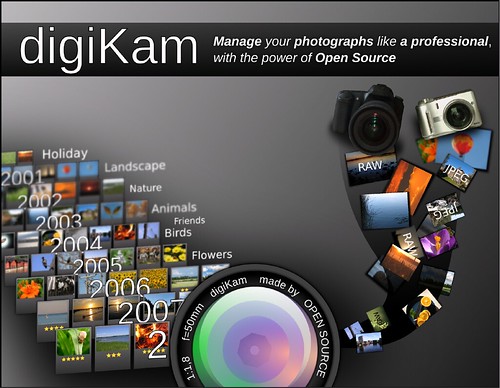
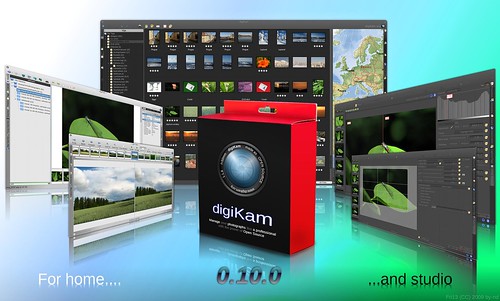
digiKam is an advanced digital photo management application for KDE, which makes importing and organizing digital photos a "snap". The photos are organized in albums which can be sorted chronologically, by folder layout or by custom collections.


Tired of the folder constraints? Don’t worry, digiKam also provides tagging. You tag your images which can be spread out across multiple folders, and digiKam provides fast and intuitive ways to browse these tagged images. You can also add comments to your images. digiKam makes use of a fast and robust database to store these meta-informations which makes adding and editing of comments and tags very reliable.

digiKam makes use of KIPI plugins for lots of added functionality. KIPI (KDE Image Plugin Interface) is an initiative to create a common plugin infrastructure for digiKam, KPhotoAlbum, Showimg, and GwenView. Its aim is to allow development of image plugins which can be shared among KDE graphical applications.

An easy-to-use interface is provided that enables you to connect to your camera and preview, download and/or delete your images. Basic auto-transformations can be deployed on the fly during image downloading.

Another tool, which most artists and photographers will be familiar with, is a Light Table. This tool assists artists and photographers with reviewing their work ensuring the highest quality only. A classical light table will show the artist the place on the images to touch up. Well in digiKam, the light table function provides the user a similar experience. You can import a photo, drag it onto the light table, and touch up only the areas that need it.


The digiKam Image Editor has its own plugin subsystem with some common tools e.g. red eye correction or Gamma correction. Additional plugins are provided with the main application to process advanced corrections on image like color management, noise reduction, or special effects. digiKam Image Editor supports all camera RAW file formats, 16 bits color depth, Exif/Makernote/IPTC/GPS/XMP metadata, Color management, tagging/rating/comments pictures, etc.

A stand-alone image editor version named ShowFoto is also available. It runs without digiKam images database support, but provides all Image Editor functions.
*for details on the features click here

Showcases For ubuntu (ubutnu Rocks and Easy To Use)


while i am in middle of my browsing time of the day i get to this two wonderful show cases for ubuntu lets stops the talk and watch the videos:


PhotoRec, Digital Picture and File Recovery


PhotoRec is file data recovery software designed to recover lost files including video, documents and archives from hard disks, CD-ROMs, and lost pictures (thus the Photo Recovery name) from digital camera memory. PhotoRec ignores the file system and goes after the underlying data, so it will still work even if your media's file system has been severely damaged or reformatted.

PhotoRec is free - this open source multi-platform application is distributed under GNU General Public License. PhotoRec is a companion program to TestDisk, an app for recovering lost partitions on a wide variety of file systems and making non-bootable disks bootable again. You can download them from this link.

For more safety, PhotoRec uses read-only access to handle the drive or memory card you are about to recover lost data from. Important: As soon as a pic or file is accidentally deleted, or you discover any missing, do NOT save any more pics or files to that memory device or hard disk drive; otherwise you may overwrite your lost data. This means that while using PhotoRec, you must not choose to write the recovered files to the same partition they were stored on.

Operating systems

PhotoRec runs under

* DOS/Win9x
* Windows NT 4/2000/XP/2003/Vista
* Linux
* FreeBSD, NetBSD, OpenBSD
* Sun Solaris
* Mac OS X

and can be compiled on almost every Unix system.

File systems

Photorec ignores the file system, this way it works even if the file system is severely damaged.
It can recover lost files at least from

* FAT,
* NTFS,
* EXT2/EXT3 filesystem
* HFS+

ReiserFS includes some special optimizations centered around tails, a name for files and end portions of files that are smaller than a filesystem block. In order to increase performance, ReiserFS is able to store files inside the b*tree leaf nodes themselves, rather than storing the data somewhere else on the disk and pointing to it. Unfortunately, PhotoRec isn't able to deal with this - that's why it doesn't work well with ReiserFS.

Media

PhotoRec works with hard disks, CD-ROMs, memory cards (Compact Flash, Memory Stick, SecureDigital/SD, SmartMedia, Microdrive, MMC, etc.), USB memory drives, DD raw image, EnCase E01 image, etc.
PhotoRec has been successfully tested with various portable media players including iPod and the following Digital Cameras:

* Canon EOS300D, 10D
* HP PhotoSmart 620, 850, 935
* Nikon CoolPix 775, 950, 5700
* Olympus C350N, C860L, Mju 400 Digital, Stylus 300
* Sony Alpha DSLR, DSC-P9
* Praktica DCZ-3.4
* Casio Exilim EX-Z 750

Known file formats

PhotoRec searches for known file headers. If there is no data fragmentation, which is often the case, it can recover the whole file. Photorec recognises numerous file formats including ZIP, Office, PDF, HTML, JPEG and various graphics file formats. The whole list of file formats recovered by PhotoRec contains more than 320 file extensions (about 200 file families).

How PhotoRec works

FAT, NTFS, ext2/ext3/ext4 file systems store files in data blocks (also called clusters under Windows). The cluster or block size remains at a constant number of sectors after being initialized during the formatting of the file system. In general, most operating systems try to store the data in a contiguous way so as to minimize data fragmentation. The seek time of mechanical drives is significant for writing and reading data to/from a hard disk, so that's why it's important to keep the fragmentation to a minimum level.

When a file is deleted, the meta-information about this file (file name, date/time, size, location of the first data block/cluster, etc.) are lost; e.g., in an ext3/ext4 file system, the names of deleted files are still present, but the location of the first data block is removed. This means the data is still present on the file system, but only until some or all of it is overwritten by new file data.

To recover these lost files, PhotoRec first tries to find the data block (or cluster) size. If the file system is not corrupted, this value can be read from the superblock (ext2/ext3/ext4) or volume boot record (FAT, NTFS). Otherwise, PhotoRec reads the media, sector by sector, searching for the first ten files, from which it calculates the block/cluster size from their locations. Once this block size is known, PhotoRec reads the media block by block (or cluster by cluster). Each block is checked against a signature database which comes with the program and has grown in the type of files it can recover ever since PhotoRec's first version came out.

For example, PhotoRec identifies a JPEG file when a block begins with:

* 0xff,0xd8,0xff,0xe0
* 0xff,0xd8,0xff,0xe1
* or 0xff,0xd8,0xff,0xfe

If PhotoRec has already started to recover a file, it stops its recovery, checks the consistency of the file when possible and starts to save the new file (which it determined from the signature it found).

If the data is not fragmented, the recovered file should be either identical to or larger than the original file in size. In some cases, PhotoRec can learn the original file size from the file header, so the recovered file is truncated to the correct size. If, however, the recovered file ends up being smaller than its header specifies, it is discarded. Some files, such as *.MP3 types, are data streams. In this case, PhotoRec parses the recovered data, then stops the recovery when the stream ends.

When a file is recovered successfully, PhotoRec checks the previous data blocks to see if a file signature was found but the file wasn't able to be successfully recovered (i.e., the file was too small), and it tries again. This way, some fragmented files can be successfully recovered.

links for documentation and how to:
PhotoRec Step By Step
How To Help
Working with CD-R/CR-RW/DVD/Floppy

TestDisk, Data Recovery


TestDisk, Data Recovery


TestDisk is a powerful free data recovery software! It was primarily designed to help recover lost partitions and/or make non-booting disks bootable again when these symptoms are caused by faulty software, certain types of viruses or human error (such as accidentally deleting a Partition Table). Partition table recovery using TestDisk is really easy.

TestDisk can

* Fix partition table, recover deleted partition
* Recover FAT32 boot sector from its backup
* Rebuild FAT12/FAT16/FAT32 boot sector
* Fix FAT tables
* Rebuild NTFS boot sector
* Recover NTFS boot sector from its backup
* Fix MFT using MFT mirror
* Locate ext2/ext3 Backup SuperBlock
* Undelete files from FAT, NTFS and ext2 filesystem
* Copy files from deleted FAT, NTFS and ext2/ext3 partitions.

TestDisk has features for both novices and experts. For those who know little or nothing about data recovery techniques, TestDisk can be used to collect detailed information about a non-booting drive which can then be sent to a tech for further analysis. Those more familiar with such procedures should find TestDisk a handy tool in performing onsite recovery.
Operating systems

TestDisk can run under

* DOS (either real or in a Windows 9x DOS-box),
* Windows (NT4, 2000, XP, 2003, Vista),
* Linux,
* FreeBSD, NetBSD, OpenBSD,
* SunOS and
* MacOS

Source files and precompiled binary executables are available for DOS, Win32, MacOSX and Linux from the download page
Filesystems

TestDisk can find lost partitions for all of these file systems:

* BeFS ( BeOS )
* BSD disklabel ( FreeBSD/OpenBSD/NetBSD )
* CramFS, Compressed File System
* DOS/Windows FAT12, FAT16 and FAT32
* Windows exFAT
* HFS, HFS+ and HFSX, Hierarchical File System
* JFS, IBM's Journaled File System
* Linux ext2 and ext3
* Linux LUKS encrypted partition
* Linux RAID md 0.9/1.0/1.1/1.2
o RAID 1: mirroring
o RAID 4: striped array with parity device
o RAID 5: striped array with distributed parity information
o RAID 6: striped array with distributed dual redundancy information
* Linux Swap (versions 1 and 2)
* LVM and LVM2, Linux Logical Volume Manager
* Mac partition map
* Novell Storage Services NSS
* NTFS ( Windows NT/2000/XP/2003/Vista/2008/7 )
* ReiserFS 3.5, 3.6 and 4
* Sun Solaris i386 disklabel
* Unix File System UFS and UFS2 (Sun/BSD/...)
* XFS, SGI's Journaled File System
Conclusions and how to use:
this tool can be used from ubuntu live cd and then installed using internet connection or you can use an ubuntu rescue remix live cd and there is a lot of documentation on how to use it here is a formel documication from ubuntu on how to use

Sunday, January 24, 2010

Gambas Easy As Visual Basic For Programing in linux

for the people who like visual basic and would like to do programing by that way i found this IDE called Gambas here is some info:
Gambas is a full-featured object language and development environment built on a BASIC interpreter. It is released under the GNU General Public Licence.

Its architecture is largely inspired by Java. So Gambas is made up of:

* A compiler.
* An interpreter.
* An archiver.
* A scripter.
* A development environment.
* Many extension components.


you can install it from the ubuntu software center or directly from the there website

Friday, January 22, 2010

Shutter An Excelent Screenshot Application

What is Shutter?

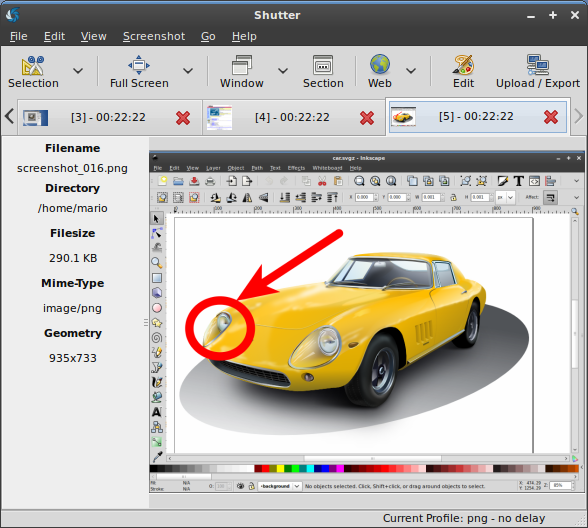
Shutter is a feature-rich screenshot program. You can take a screenshot of a specific area, window, your whole screen, or even of a website – apply different effects to it, draw on it to highlight points, and then upload to an image hosting site, all within one window.

Features:

* take a screenshot of your complete desktop, a rectangular area or capture a website
* take screenshot directly or with a specified delay time
* save the screenshots to a specified directory and name them in a convenient way
(using special wild-cards)
* Shutter is fully integrated into the Gnome Desktop (TrayIcon etc.)
* generate thumbnails directly when you are taking a screenshot and set a size level in %
* Shutter session collection
o keep track of all screenshots during session
o copy screeners to clipboard
o print screenshots
o delete screenshots
o rename your file
* upload your files directly to Image-Hosters (e.g. http://ubuntu-pics.de), retrieve all the needed links and share them with others
* edit your screenshots directly using the embedded drawing tool


Shutter is an open-source program, licensed under GPL v3.

here is some screenshots:


Xournal try it


Xournal is an application for notetaking, sketching, keeping a journal using a stylus. It is free software (GNU GPL) and runs on Linux (recent distributions) and other GTK+/Gnome platforms. It is similar to Microsoft Windows Journal or to other alternatives such as Jarnal, Gournal, and NoteLab.
Xournal aims to provide superior graphical quality (subpixel resolution) and overall functionality; however it lacks the collaborative features of Jarnal. Since Xournal is still in its early development stages, it may not be fully stable, and some features have not been implemented yet.

How to install in Ubuntu:
just click on Applications>ubuntu software centre> then type xournal and then click install and that's it you will find the it in the Applications>Accessories menu


Related links:

* The user's manual
* Various third-party patches that haven't been included in the distribution yet

Wednesday, January 20, 2010

sudo vs. su


One of the things that makes Linux more secure than some operating systems is a permission system and separate logins. This adds the complication that some administrative tasks must be done using the administrator login (called root) but that is a small price to pay for the added level of security.

Different Linux distributions offer different ways to become root to perform these administrative tasks. The differences are not complicated to understand and there are valid reasons for each approach. In this article TUX explains these differences and how to get the job done using the various approaches.

If your system presents you with a graphical login screen (SuSE and Debian are two examples) then you would expect that logging in as root instead of your personal login would be the approach. While it can be done, it is the most dangerous approach from a security point of view.

Once you have logged in you will be running your typical graphical interface but with system-wide permissions. This means an inadvertent mistake could have systemwide consequences. For example, you could drag an important system file or program to the trash can. Without your typical user-level restrictions, the file would be removed and the system could quickly come to a grinding halt.

SuSE systems warn you that you are the root user by displaying a red background with bombs on it but this is just a warning to you to be careful. The system isn't checking your work so it is up to you not to make a mistake or you will just pay the consequences. A better solution would be to have you use your normal login for most of the work but be able to temporarily become the administrator as needed.

YAST, SuSE's graphical administration program offers a level of protection. You can start YAST from the menu and it prompts you for the root password and then keeps you within its graphical environment. Thus, you at least have the level of hand-holding that YAST offers before you can make a fatal mistake. But, besides still having the ability to make a mistake, a bug in the YAST software itself could result in system damage.

The real goal is to do the various tasks with the minimum permissions that allow the task to be performed. For geeks, Linux (and UNIX) has always had the su or substitute user command. This means that from the command line, you could become the administrator or any other user as long as you had the appropriate password. No need to log out and back in.

The most common place where this capability would be used in in building new software from source code. Typically, this is done by running three commands, ./configure, make and make install. Only the last one of these commands (make install) needs to be run as the administrator. Thus, from the command line, the user can use the su command before running make install to run only the one command as root. Not much overhead for a large amount of added security.

While this approach is a lot safer than just logging in as root, you still must remember to exit the administrator level with either exit or Control-D to get you back to your own user permissions. That means forgetting a step or just being lazy can be dangerous. A safer approach would be to require you to take action each time you want to run a command as root.

Enter the sudo command. Unlike su, sudo changes your permissions for only a single command. Once that command completes your permissions revert back to the ones you had when you logged in. Note that while sudo has additional capabilities, 99% of the time this is all you want. For the geeks out there, read the sudo man page by entering man sudo in a terminal window.

Using sudo, the build sequence described above just becomes ./configure, make and sudo make install. No other changes other than adding sudo to the third command and no need to exit to get back to your normal user permissions.

Both the Knoppix and Ubuntu/Kubuntu distributions don't include the su command nor do the have root logins. The only way to get administrator privileges at the command-line level is to use sudo. With Knoppix running from a live CD there are no user logins so sudo happens with no questions asked.

With Kubuntu, it works a bit different. When you enter the sudo command for the first time, you will be prompted for a password. What password? Yours. That is, the password you normally use to log in. This is to prevent someone walking over to an unattended system from getting root access. In order to make it more convenient to do a series of commands as root, Kubuntu remembers that you have run as root recently and doesn't require the password. But, after a short idle period, you will be asked for it again.

Hopefully this article has filled in your knowledge on how to get administrator access. The most important information in this article is, however, to always try to do as much as possible without administrator permissions. Using this approach you will find that you say "Oops!" a lot less often.

Tuesday, January 19, 2010

The Definitive 9.10 Broadcom Solution Guide

Broadcom hardware only. Credit to respective solution providers included below. Feel free to chime in if I've missed something.

Broadcom BCM4311/12/21/22 Hardware (STA driver):
NOTE: ASSUMES FRESH INSTALL. FOR LAPTOPS, ONCE THE SYSTEM REBOOTS AFTER INSTALL, REBOOT AGAIN
AND TOGGLE THE WIRELESS BUTTON (YES, IT COULD BE THAT EASY).

Plug into the network via cable:

1. IF WIRED CONNECTION WORKS:
1. Open System -> Admin -> Update Manager
2. Check for updates, install, and reboot
3. After reboot, open System -> Admin -> Hardware Drivers
4. Look for "Broadcom STA wireless driver";
1. IF DRIVER IS PRESENT AND ACTIVATED:
1. Remove network cable, toggle wireless button, and log into network.
2. IF DRIVER IS PRESENT BUT NOT ACTIVATED:
1. Activate and reboot;
2. After reboot, remove network cable, toggle wireless button, and log into network.
3. IF DRIVER IS NOT PRESENT:
1. Open System -> Admin -> Synaptic Pkg Mgr
2. Search for "bcmwl-kernel-source" (if not available, move to step 2)
1. Right-click and mark for installation
2. Apply changes and reboot.
3. Repeat steps 1.3-1.4.2
2. IF WIRED CONNECTION DOES NOT WORK:
1. From LiveCD (solution provided by jomtois here - edited for clarity):
1. Open Sytem -> Admin -> Synaptic Package Mgr
2. Ensure 9.10 LiveCD is in the drive
3. In Synaptic Package Mgr, open Settings -> Repositories -> Ubuntu Software
4. Check "Installable from CD-ROM/DVD" and close
5. Reload (disregard connectivity errors)
6. Search for "bcmwl-kernel-source"
7. Right-click and mark for installation
8. Apply changes and reboot
9. Repeat steps 1.3 thru 1.4.2
2. From LiveUSB:
1. Navigate to pool -> main -> d -> dkms
2. Run "dkms_2.1.0.1-0ubuntu1_all.deb"
3. Navigate to pool -> restricted -> b -> bcmwl
4. Run "bcmwl-kernel-source_5.10.91.9+bdcom-0ubuntu4_i386.deb"
5. Reboot
6. Repeat steps 2.1.6 thru 2.1.9 and 1.3 thru 1.4.2

Broadcom BCM4301/03/06/09 Hardware (B43 driver):
NOTE: IF YOUR CARD IS A BCM4306 REV 2, OR ONLY HAS 802.11B CAPABILITY, IT USES
B43LEGACY. ALL OTHER MODELS USE B43. THE STEPS BELOW WILL BUILD BOTH B43 AND
B43LEGACY (AND GET FIRMWARE FOR BOTH TOO). THE KERNEL AUTOLOADER WILL
AUTOMATICALLY DO THE RIGHT THING AND LOAD THE CORRECT DRIVER FOR YOUR DEVICE.
ADDITIONAL INFO HERE. ASSUMES FRESH INSTALL. FOR LAPTOPS, ONCE THE SYSTEM REBOOTS
AFTER INSTALL, REBOOT AGAIN AND TOGGLE THE WIRELESS BUTTON (YES, IT COULD BE THAT
EASY).

Plug into the network via cable:

1. IF WIRED CONNECTION WORKS:
1. Open System -> Admin -> Update Manager
2. Check for updates, install, and reboot
3. After reboot, open System -> Admin -> Hardware Drivers
4. Look for "Broadcom B43 wireless driver";
1. IF DRIVER IS PRESENT AND ACTIVATED:
1. Remove network cable, toggle wireless button, and log into network.
2. IF DRIVER IS PRESENT BUT NOT ACTIVATED:
1. Activate and reboot;
2. After reboot, remove network cable, toggle wireless button, and log into network.
3. IF DRIVER IS NOT PRESENT:
1. Open System -> Admin -> Synaptic Pkg Mgr
2. Search for "b43-fwcutter" (if not available, move to step 2)
3. Right-click and mark for installation
4. Apply changes (answer yes when asked "Fetch and install firmware?")
5. Reboot
6. Repeat steps 1.3 thru 1.4.2
2. IF WIRED CONNECTION DOES NOT WORK:
1. From LiveCD (based on solution provided by jomtois here - edited for clarity):
1. Open Sytem -> Admin -> Synaptic Package Mgr
2. Ensure 9.10 LiveCD is in the drive
3. In Synaptic Package Mgr, open Settings -> Repositories -> Ubuntu Software
4. Check "Installable from CD-ROM/DVD" and close
5. Reload (disregard connectivity errors)
6. Search for "b43-fwcutter"
7. Right-click and mark for installation
8. Apply changes (answer yes when asked "Fetch and install firmware?")
9. Reboot
10. Repeat steps 1.3 thru 1.4.2
2. From LiveUSB:
1. Navigate to pool -> main -> d -> dkms
2. Run "dkms_2.1.0.1-0ubuntu1_all.deb"
3. Navigate to pool -> restricted -> b -> bcmwl
4. Run "bcmwl-kernel-source_5.10.91.9+bdcom-0ubuntu4_i386.deb"
5. Reboot
6. Repeat steps 2.1.6 thru 2.1.9 and 1.3 thru 1.4.2

Transfer Files from Another Computer
NOTE: IF NECESSARY, THE STA AND B43 PACKAGES CAN BE
DOWNLOADED USING THE LINKS BELOW. BE SURE TO INCLUDE THE
APPROPRIATE DEPENDENCIES.

STA Driver Source
http://packages.ubuntu.com/da/karmic/bcmwl-kernel-source

B43 Driver Source
http://packages.ubuntu.com/karmic/b43-fwcutter

The GNOME Activity Journal

The GNOME Activity Journal is getting better and better by the minute!


Developer Seif Lofty posted the following video of it in action and i can confirm that it as every-bit njoayble to use as it is to look at! Take a peek at the video - it's quite short - or skip directly to the installation instructions below.

How To Install Zeitgeist & GNOME Activity Journal In Ubuntu
I'm going to assume you already have bzr installed. If you don't then you'll need to install it. [You can click here to do so]

First you'll need to get and install Zeitgeist - the engine behind GAJ.

Open a terminal and carefully copy the following commands.

* bzr branch lp:gnome-zeitgeist
* cd gnome-zeitgeist
* ./autogen.sh
* make && sudo make install

Make Zeitgeist auto-start-up when you login to save you the hassle of manually starting it.

* System > Preferences > Startup Applications
* New Item
* Browse through to your Zeitgeist folder and select 'zeitgesit-daemon.py'
* Click 'okay'

Now let's grab the Activity Journal itself: -

* bzr branch lp:gnome-activity-journal

You can run it using: -

* cd gnome-activtiy-journal
* ./gnome-activity-journal

It may be helpful/easier for you to create a shortcut to the GNOME Activity Journal.

* Right-click the main menu on the upper GNOME panel
* Choose 'Edit Menus'
* Click 'Accessories' in the left hand pane
* Now click the 'New Item' button on the upper right hand side

* Give it a name (Like, maybe, 'GNOME Activity Journal'?)
* For the command you will need to click 'browse' and navigate to your GAJ directory
* select 'gnome-activity-journal' and click 'Ok'

Updating
You can easily update both Zeitgeist and GAJ by navigating to the relevant folders in a terminal and issuing 'bzr pull'.

Open Office --How do I make my first page a cover or title page and start page numbering (Page 1) on the second page of my document?

How do I make my first page a cover or title page and start page numbering (Page 1) on the second page of my document?

1. Open a new Writer document.
2. Enter some or all of the text that you want on your cover page (or simply press the Enter key a few times).
3. Press F11 to open the Styles and Formatting window. Choose "Page Styles" from the icons (hover with your pointer on each icon to open the note). Double-click on "First Page" for assigning the "First Page" style to the first page of your document.
4. Place the cursor at the end of the first page. Select Insert->Manual Break from the menu bar.
5. Select "Page Break". Then choose the style to use for the next page (pick one from the menu - such as "Default"). Then mark the check box called "Change page number". In the box below this check box the number 1 should appear. Click OK.
6. Now you should have two pages. Put the cursor in the second page, then select Insert->Footer->Default from the menu bar. A footer area will appear on the second page.
7. To insert the page number, select: Insert->Fields->Page Numbers. A number '1' should appear on the second page of the file.

Note: each page style can have different characteristics (headers, footers, page numbering, etc.). The page style that is assigned for each page of the document can be seen by clicking into the desired page. Look below the document window area, to the right of the "Page x/n" block to see the page style name for the current page/section.

Monday, January 18, 2010

OpenShot 1.0 Stable Released; Best Linux Video Editor

Video Editor OpenShot announced the release of it's seminal version 1.0 earlier today packing in so many new features, improvements and bug fixes I'm not sure I'll be able to mention them all!

The full list of new features can be found in the official OpenShot announcement, however here is a quick "summing up", giving you an over-view of some of the new features in OpenShot 1.0.

* Stable as a house - OpenShot themselves say "Just try and crash OpenShot now. We dare you."
* 28 new video transitions
* 29 new titles in both 4:3 and 16:9 ratios
* Two new themes for OpenShot itself including a 'simple' theme and a non-glossy blue one
* New Languages
* Help Manual integration
* Chroma Key fixed

OpenShot Video Editor - Version 1.0 Released! from Jonathan Thomas on Vimeo.


Any regular reader to OMG! will know that OpenShot Video Editor is a firm favourite of ours, so we congratulate the OpenShot developers for yet another awesome release.
The release of OpenShot 1.0 has truly raised the bar for Desktop Video Editing on Linux.

Download
OpenShot 1.0 can be downloaded using the instructions on the official site @ openshotvideo.com/download

websites and blogs about ubuntu it helped me so much

this is a list of websites that helped me so much to find solutions and how to tutorials:
  1. http://ubuntuclips.org/ (got videos on how to and introductory videos on ubuntu).
  2. http://www.omgubuntu.co.uk(a very popular blog about ubuntu include many new news and applications tips and how to)
  3. http://www.ubuntugeek.com (the most popular got many good things for beginners intermediate and professional users)
  4. http://fullcirclemagazine.org (an online magazine for ubuntu)
  5. http://ubuntuforums.org (the official ubuntu forums can get many things there and it is up to date and always active).
  6. http://www.ubuntux.org (another blog for ubuntu)

Back track 4 avialable now


Offensive Security has announced the release of BackTrack 4, an Ubuntu-based live DVD containing a large collection of tools for security audits, computer forensics and penetration testing: "BackTrack 4 final is out and along with this release come some exciting news, updates, and developments. BackTrack 4 has been a long and steady road, with the release of a beta last year, we decided to hold off on releasing BackTrack 4 final until it was perfected in every way, shape and form. This release includes a new kernel, a larger and expanded toolset repository, custom tools that you can only find on BackTrack, and more importantly, fixes to all major bugs that we knew of. This release has received an overwhelming support from the community and we are grateful to everyone who has contributed to the success of this release." Here is the full release announcement. Download (MD5) the live DVD image via BitTorrent: bt4-final.iso (1,497MB).
they did renew the whole website go and check
http://www.backtrack-linux.org/